How to Use Views and Sections in GorgiasUpdated 8 months ago
Overview
Views and Sections in Gorgias help streamline customer support by organizing tickets into customizable lists based on specific criteria. This structure enables team members to quickly access relevant tickets, prioritize urgent issues, and ensure efficient ticket management.
Step-by-Step Guide
1. Navigating to Views
- Log in to Gorgias: Start by logging into your Gorgias account.
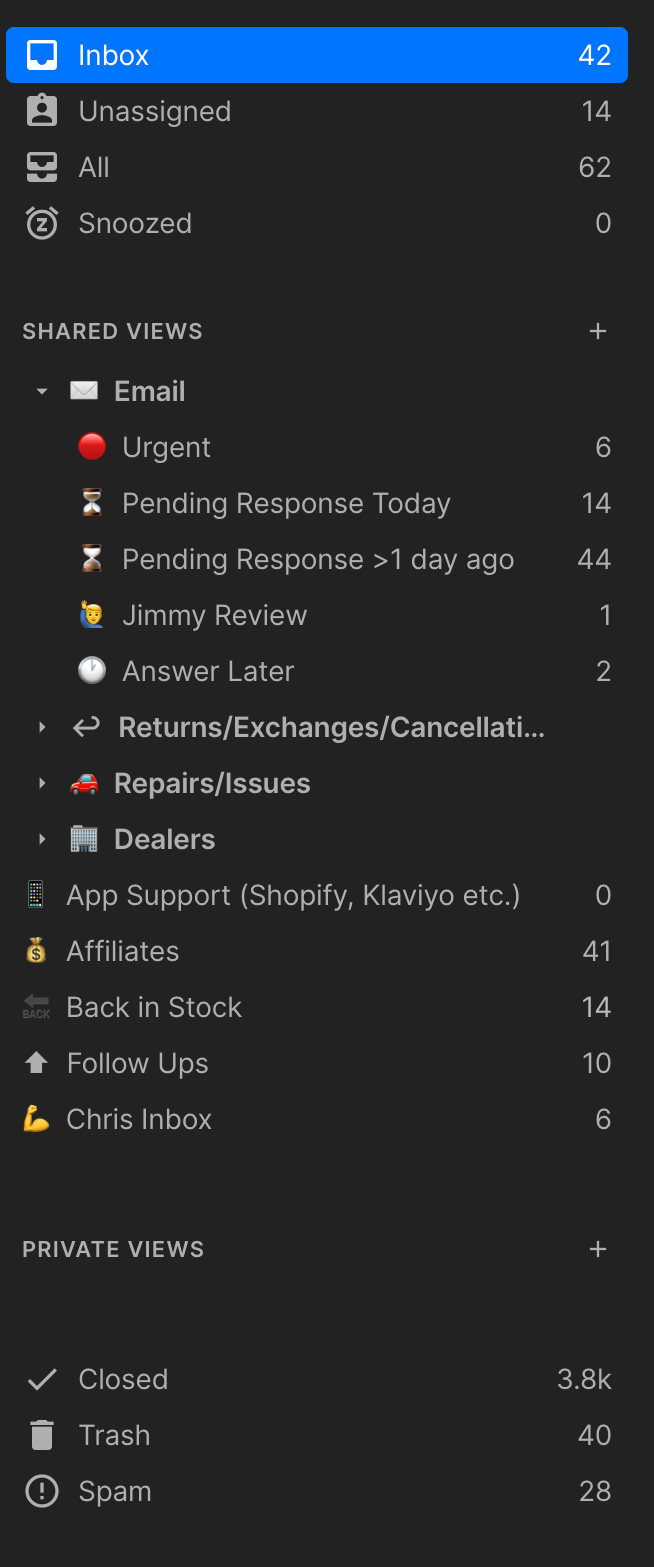
- On the left-hand sidebar, you’ll find your Shared Views and Private Views sections. Views are organized into different categories like Email, Repairs/Issues, Affiliates, and more.
2. Key Shared Views (screenshot below)
- Gorgias provides default views (e.g., Inbox, All, Unassigned) that you can use, but your team has also created shared views to capture specific workflows. Some key shared views include:
- ⏳ Pending Response Today: Tickets that need immediate follow-up where a response from the customer is expected within the day.
- ⏳ Pending Response >1 Day Ago: Tracks tickets awaiting a customer response for more than a day, helping to manage follow-ups.
- 🔴 Urgent: Captures time-sensitive tickets that require immediate attention.
- 🧑💼 Jimmy Review: Tickets specifically flagged for review by the CEO.
- 🕒 Answer Later: Tickets that can be answered later but still need attention.
3. Sections for Ticket Organization
Sections help to group similar views together for easier access. Here are some important sections your team uses:
- Returns/Exchanges/Cancellations: Organizes tickets related to returns, exchanges, or cancellations of orders.
- Repairs/Issues: Consolidates tickets related to product repairs, with sub-views like Simagic, Cube or Moza Issue/Repair to track different product lines.
- Dealers: This section focuses on dealer-related requests and discussions around collaborations on Shopify collective.
4. Other Shared Views
- App Support (Shopify, Klaviyo, etc.): Tracks tickets related to app integration issues, such as with Shopify or Klaviyo.
- Affiliates: Manages tickets related to affiliate partners, keeping track of requests and communications.
- Back in Stock: Monitors requests for items that are back in stock (this requires tagging the ticket with the relevant 'Back In Stock' tag)
- Follow Ups: Keeps track of follow-up actions needed for certain tickets this requires tagging the ticket with the relevant 'Follow Ups' tag)
5. Managing Private Views
- Closed: A list of all resolved tickets.
- Trash: Contains deleted tickets.
- Spam: Captures any tickets flagged as spam.
Best Practices for Using Views Efficiently:
- Prioritize Urgent Tickets: Always handle tickets in the Urgent view first to ensure time-sensitive issues are resolved promptly.
- Regularly Check Pending Response Views: Make sure both Pending Response Today and Pending Response >1 Day Ago are reviewed frequently to stay on top of customer follow-ups.
- Follow-Up on Answer Later: Use the Answer Later view to manage tickets that require less immediate attention but should not be ignored.
- Repairs/Issues: This section allows your team to group and handle repair-related tickets more effectively, categorized by the specific product line.