How to process a returnUpdated 8 months ago
Firstly, on the ticket in Gorgias, request that the customer send over photos/videos of the product and original shipping packaging to further assess the damage.
Tag @Jimmy Fisher or @Daniel Petley to assess.
Once this information has been assessed, they will give a go-ahead on whether to proceed with the exchange/refund or not.
Please use the tag 'Jimmy Review' or 'Daniel Review' so that they can provide feedback accordingly. (In some cases the supplier will need to send out a new product but we mostly take care of this).
There are two ways to do this.
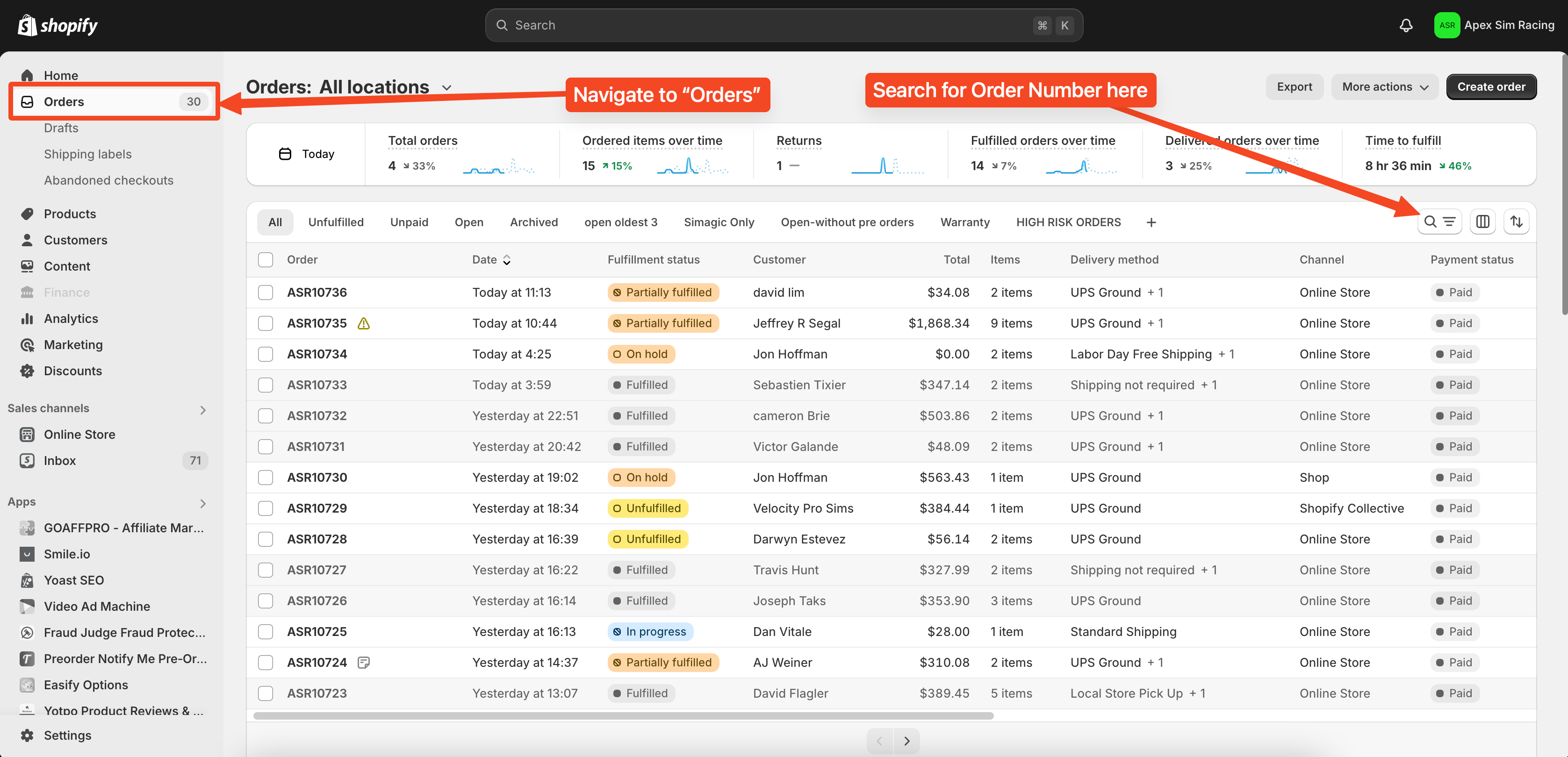
882003439642From your Shopify admin, go to Orders.
Search for the order, for example: (ASR12345) and click the order that you want to return.
In Shopify:
Second Option:
In Gorgias:
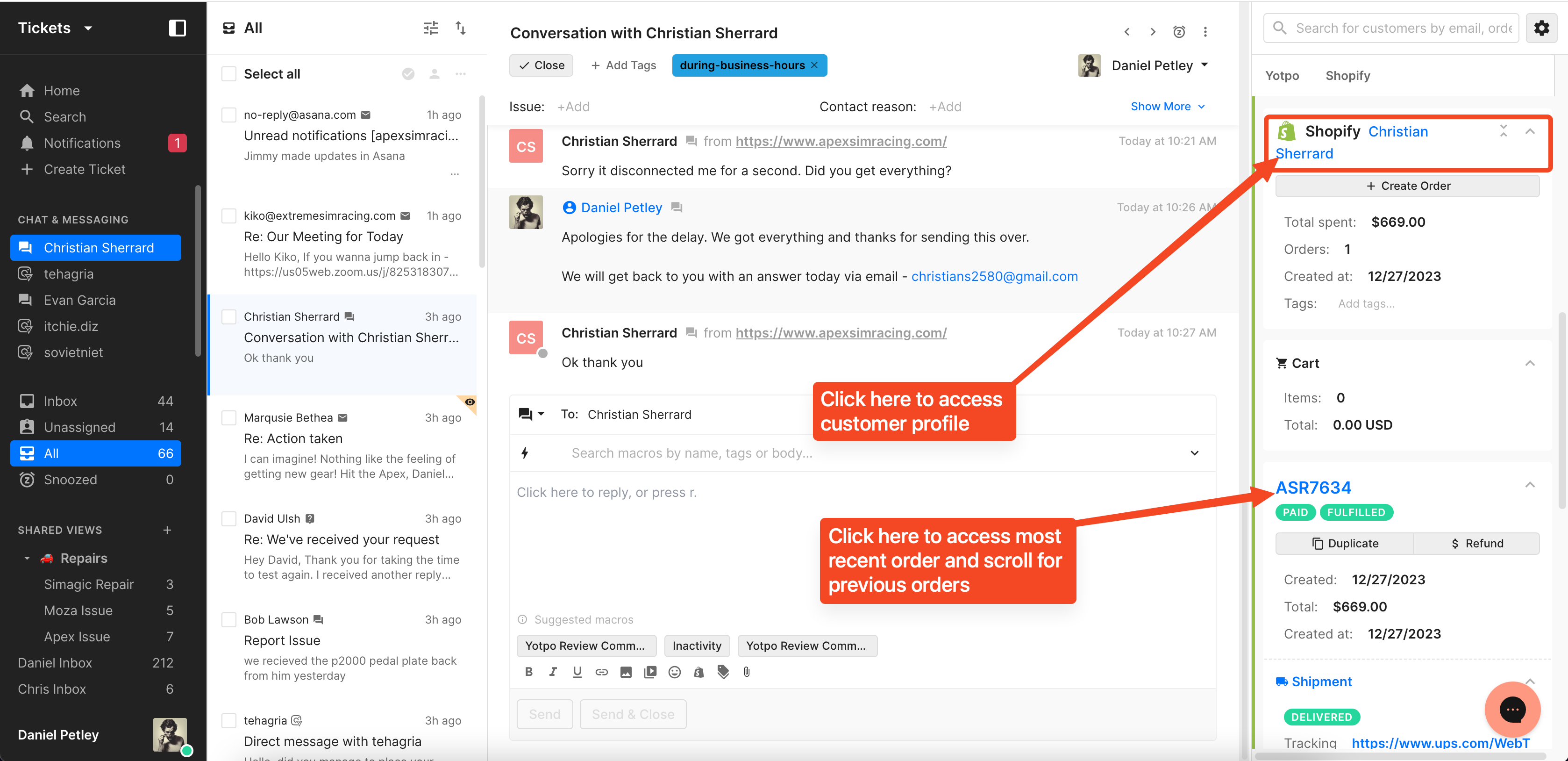
Click Return: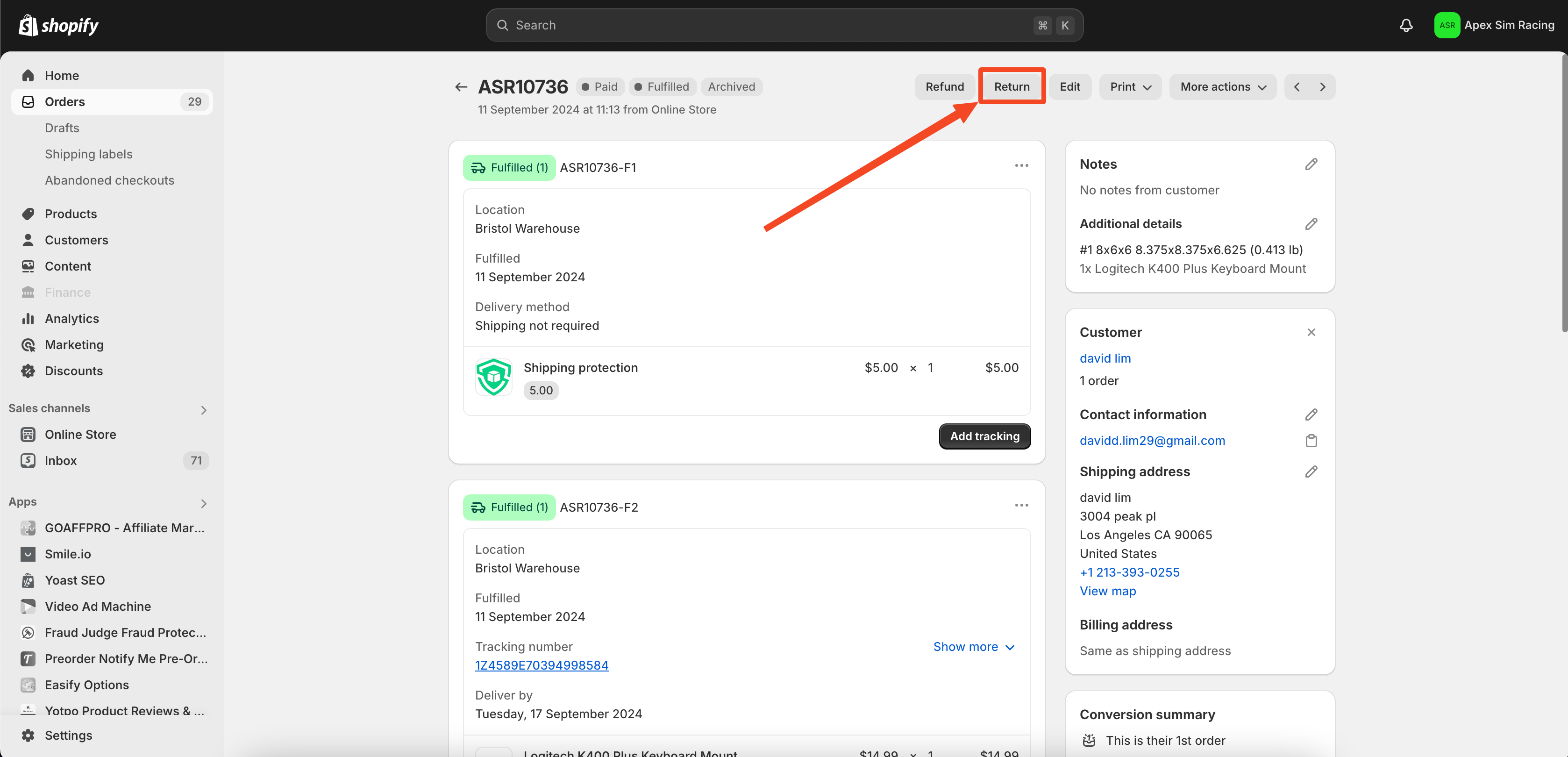
In the Select Return items section, enter the number of items that you want to return, and then select a return reason.
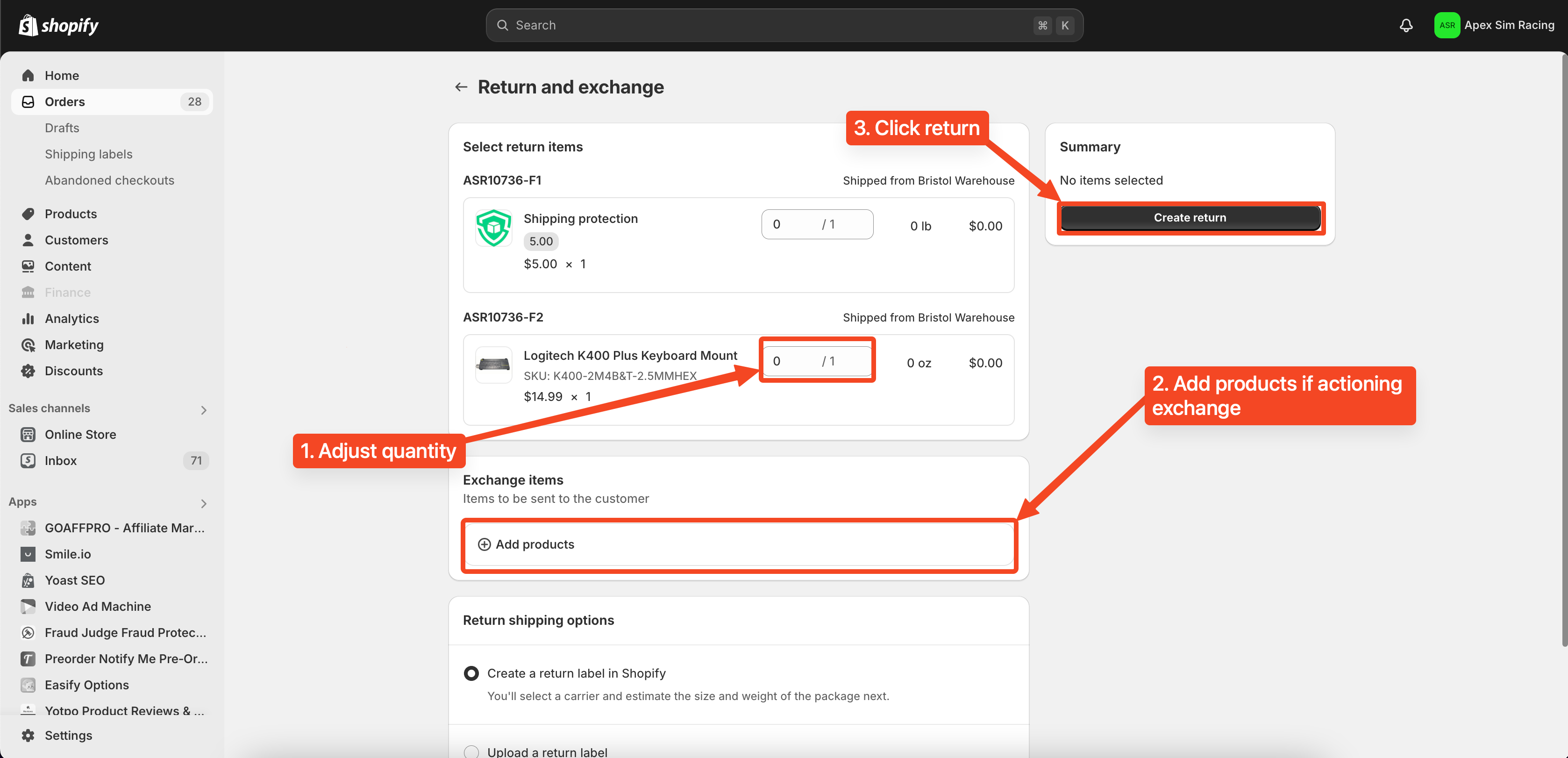
Optional: To edit a restocking fee or a return shipping fee, complete the following steps:
- In the Summary section, click Restocking fee or Return Shipping.
- Enter a new restocking fee or return shipping.
- Click Save.
- Optional: You can also edit the restocking fee on an individual return item by clicking on the fee below the item.
Optional: To add exchange items to a return, complete the following steps:
In the Exchange items section, click Add products (refer to screenshot in the previous step)
Select the exchange items, and then click Done.
- Optional: To apply a product discount to exchange items, complete the following steps:
- Click Apply Discount next to the exchange item's price.
- Enter a discount type, discount value, and a reason for the discount.
- Click Apply.
In the Return shipping options section, select one of the following options: (refer to screenshot in the previous step)
- Select Create a Return Label in Shopify to create a return shipping label for your customer. This option is available only if your primary location and customer shipping address are both in the United States.
- Select Upload a return label to upload an existing return shipping label for your customer. You can upload a PDF or JPEG file for your return label or add a return label URL. You can also enter a Tracking number and Shipping carrier.
- Select No shipping required to create a return without any return shipping information.
Click Create Return. (refer to the screenshot in the previous step)
Send the Customer the return label:
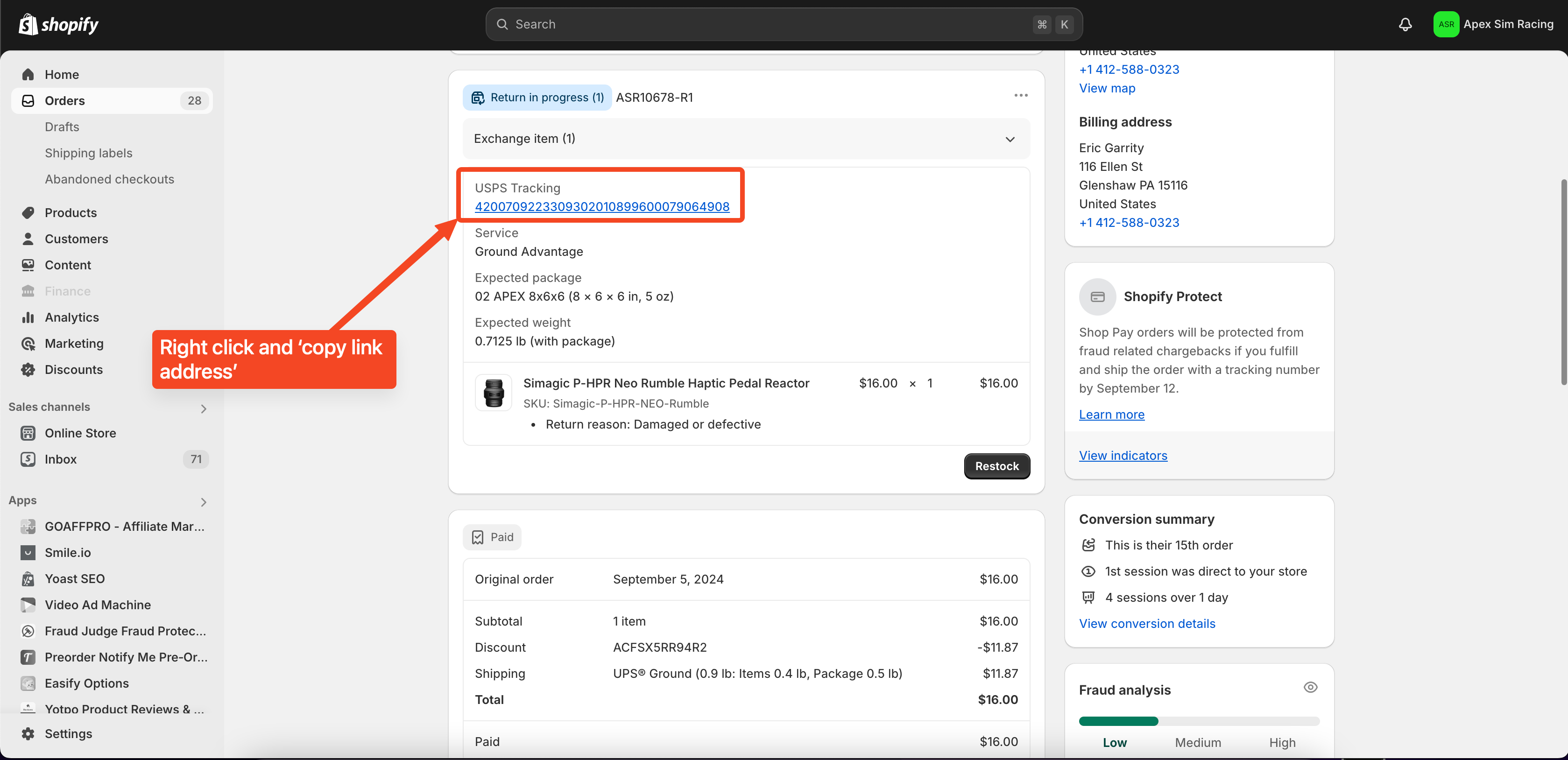
NOTE:
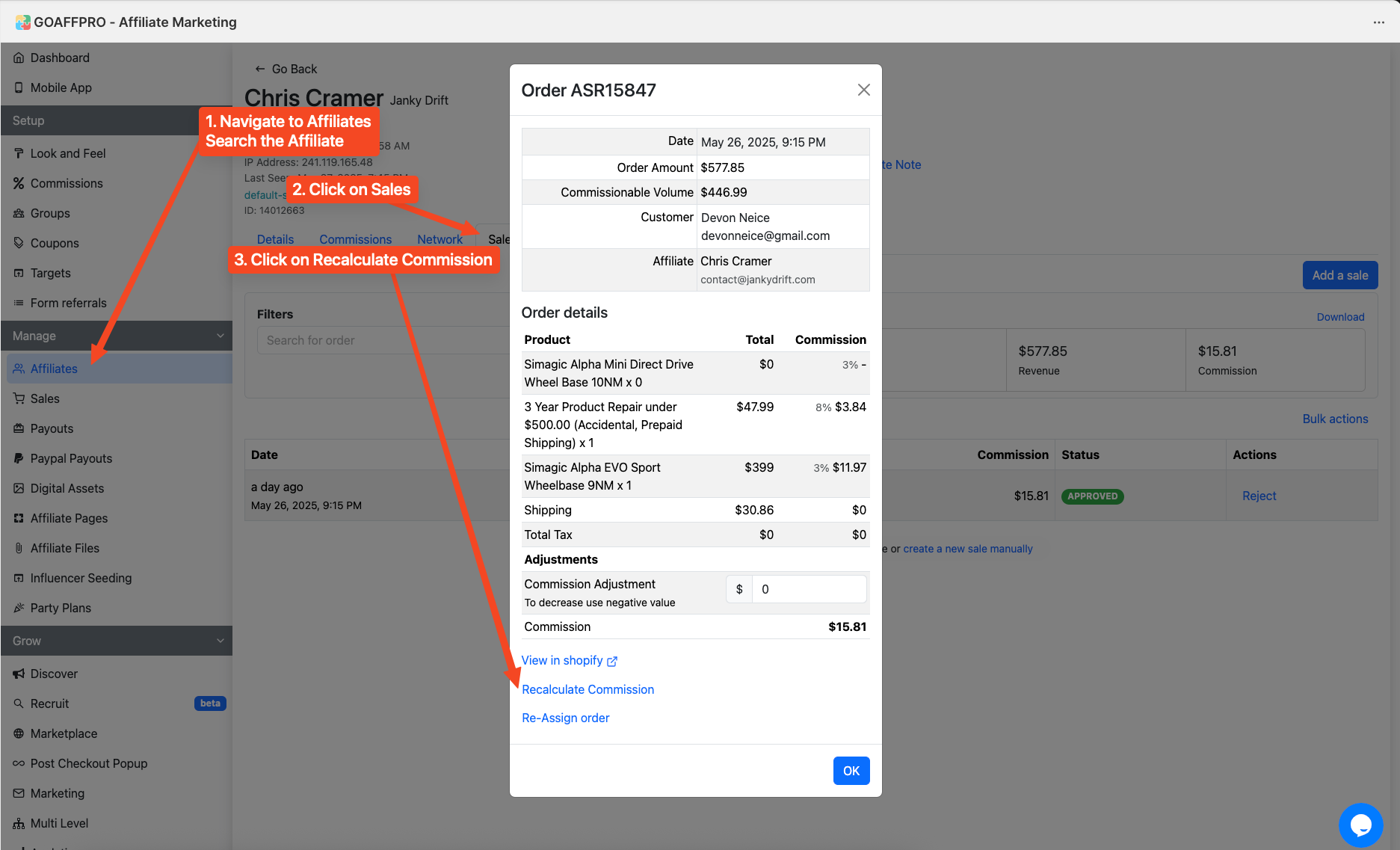
When exchanging a product, ALWAYS take note of the affiliate. If you adjust the order, GOAFF Pro needs to recalculate the commission as shown in the screenshot below: